> ## Documentation Index
> Fetch the complete documentation index at: https://docs-staging-actions-modules-ga.mintlify.site/llms.txt
> Use this file to discover all available pages before exploring further.

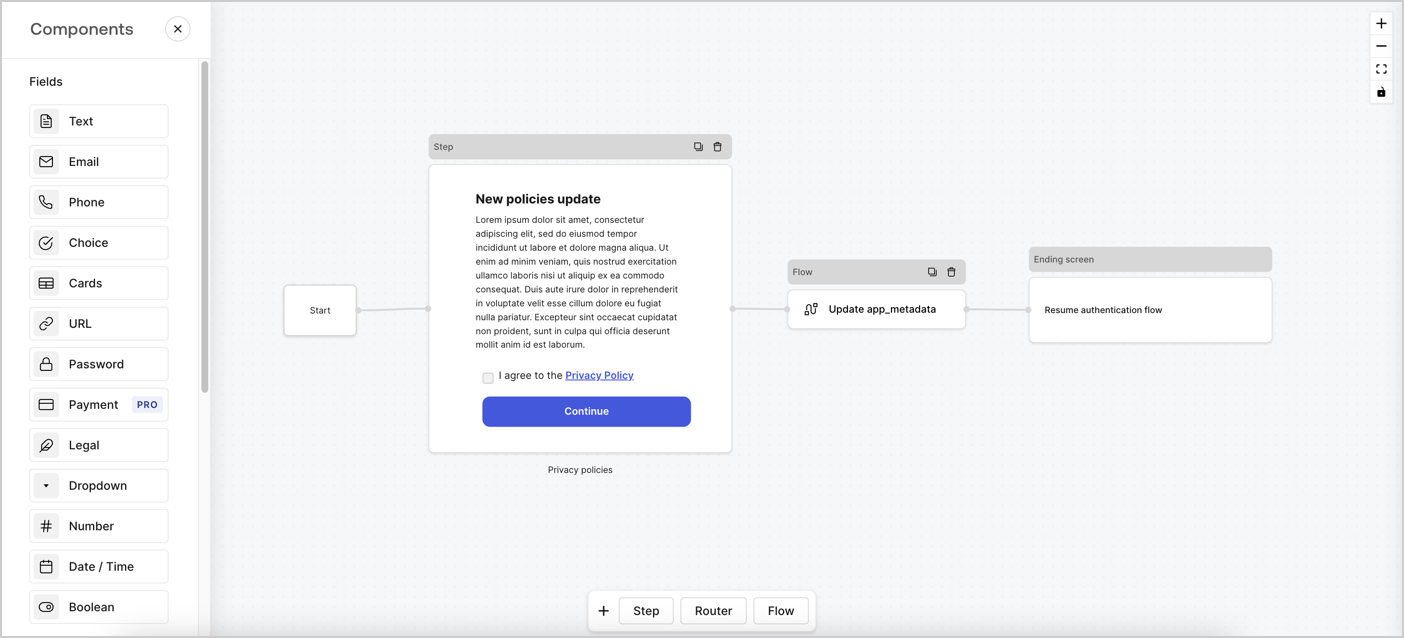
> Learn how to configure an update policy form using Forms for Actions for users to review and accept new terms of service or consent updates.

# Use Cases: Configure an update policy form using Forms

<Card title="Before you start">
  1. Create a [Machine-to-Machine Application](/docs/get-started/auth0-overview/create-applications/machine-to-machine-apps) with the following scopes enabled:

  * `read:users`
  * `update:users`
  * `create:users`
  * `read:users_app_metadata`
  * `update:users_app_metadata`
  * `create:users_app_metadata`

  2. Add a [Vault connection](/docs/customize/forms/vault) using the M2M application credentials.
</Card>

Forms for Actions allows you to create custom privacy policies flows and store the consent under the `app_metadata` object.
<Frame>
  <img src="https://mintcdn.com/docs-staging-actions-modules-ga/HUG1HenOThCKU6DB/docs/images/cdy7uua7fh8z/6i68dMvHDTijfRmSgN1x8Q/ad900e7d4c0fb34645921435472b8684/privavy-policy-form.png?fit=max&auto=format&n=HUG1HenOThCKU6DB&q=85&s=3d307df01c7bc8eee99d9ca3f1af918f" alt="Dashboard > Actions > Forms > Privacy policy use case" data-og-width="1404" width="1404" data-og-height="638" height="638" data-path="docs/images/cdy7uua7fh8z/6i68dMvHDTijfRmSgN1x8Q/ad900e7d4c0fb34645921435472b8684/privavy-policy-form.png" data-optimize="true" data-opv="3" srcset="https://mintcdn.com/docs-staging-actions-modules-ga/HUG1HenOThCKU6DB/docs/images/cdy7uua7fh8z/6i68dMvHDTijfRmSgN1x8Q/ad900e7d4c0fb34645921435472b8684/privavy-policy-form.png?w=280&fit=max&auto=format&n=HUG1HenOThCKU6DB&q=85&s=08120f568f8d56a81f539a9cd992ba6b 280w, https://mintcdn.com/docs-staging-actions-modules-ga/HUG1HenOThCKU6DB/docs/images/cdy7uua7fh8z/6i68dMvHDTijfRmSgN1x8Q/ad900e7d4c0fb34645921435472b8684/privavy-policy-form.png?w=560&fit=max&auto=format&n=HUG1HenOThCKU6DB&q=85&s=88af3bc35ce016b3ea3737fcc42b31d7 560w, https://mintcdn.com/docs-staging-actions-modules-ga/HUG1HenOThCKU6DB/docs/images/cdy7uua7fh8z/6i68dMvHDTijfRmSgN1x8Q/ad900e7d4c0fb34645921435472b8684/privavy-policy-form.png?w=840&fit=max&auto=format&n=HUG1HenOThCKU6DB&q=85&s=bbedbfc4b88a46fc4d580d53cddbced4 840w, https://mintcdn.com/docs-staging-actions-modules-ga/HUG1HenOThCKU6DB/docs/images/cdy7uua7fh8z/6i68dMvHDTijfRmSgN1x8Q/ad900e7d4c0fb34645921435472b8684/privavy-policy-form.png?w=1100&fit=max&auto=format&n=HUG1HenOThCKU6DB&q=85&s=4ba9558ebb0b172fa64c47b5853a69f9 1100w, https://mintcdn.com/docs-staging-actions-modules-ga/HUG1HenOThCKU6DB/docs/images/cdy7uua7fh8z/6i68dMvHDTijfRmSgN1x8Q/ad900e7d4c0fb34645921435472b8684/privavy-policy-form.png?w=1650&fit=max&auto=format&n=HUG1HenOThCKU6DB&q=85&s=3af6dac5127bab38316d9f8541b546df 1650w, https://mintcdn.com/docs-staging-actions-modules-ga/HUG1HenOThCKU6DB/docs/images/cdy7uua7fh8z/6i68dMvHDTijfRmSgN1x8Q/ad900e7d4c0fb34645921435472b8684/privavy-policy-form.png?w=2500&fit=max&auto=format&n=HUG1HenOThCKU6DB&q=85&s=74fe0d418290f3f677c699f803915446 2500w" />
</Frame>

The sections below outline how you can create an Update Policy form using nodes and flows, along with steps for adding your form to a [Post Login](/docs/customize/actions/explore-triggers/signup-and-login-triggers/login-trigger) Action.

## Create a form from scratch

Follow these steps to create a form to gather information:

1. Open the Form editor by selecting **Auth0 Dashboard > Actions > Forms.**
2. Select **Create Form** > **Start from scratch**.

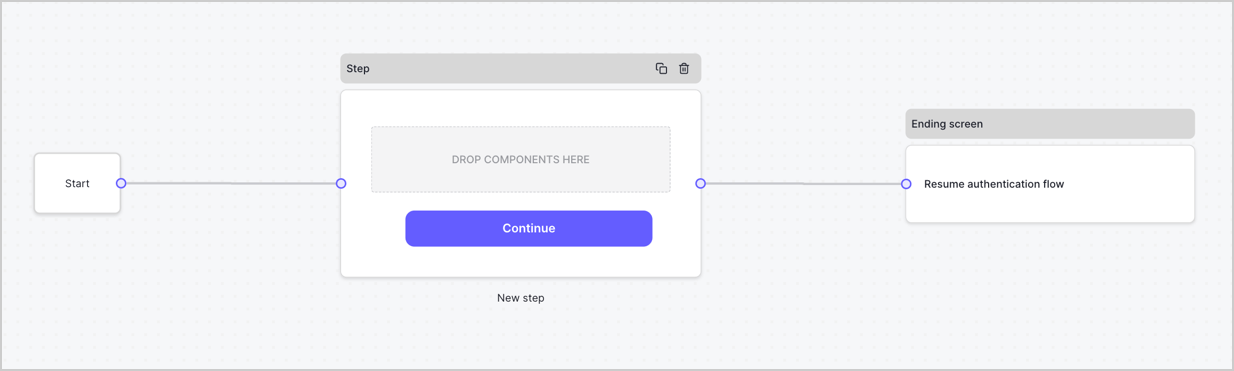
By default, a new form contains a Start node, a Step node, and an Ending screen node.
<Frame>
  <img src="https://mintcdn.com/docs-staging-actions-modules-ga/oDvMZdq7dFzkG3cE/docs/images/cdy7uua7fh8z/2TZ9jSjgEcARFpULI6hz4R/a4319a1bd482f2ee5cc23100fdb2f42c/New-form-Forms-for-action-use-case.png?fit=max&auto=format&n=oDvMZdq7dFzkG3cE&q=85&s=27290f4dbc995e00b33b025d8dac462d" alt="Dashboard > Forms > Use Cases > Form" data-og-width="1234" width="1234" data-og-height="371" height="371" data-path="docs/images/cdy7uua7fh8z/2TZ9jSjgEcARFpULI6hz4R/a4319a1bd482f2ee5cc23100fdb2f42c/New-form-Forms-for-action-use-case.png" data-optimize="true" data-opv="3" srcset="https://mintcdn.com/docs-staging-actions-modules-ga/oDvMZdq7dFzkG3cE/docs/images/cdy7uua7fh8z/2TZ9jSjgEcARFpULI6hz4R/a4319a1bd482f2ee5cc23100fdb2f42c/New-form-Forms-for-action-use-case.png?w=280&fit=max&auto=format&n=oDvMZdq7dFzkG3cE&q=85&s=fff607448dd92d22fed9254f2e292745 280w, https://mintcdn.com/docs-staging-actions-modules-ga/oDvMZdq7dFzkG3cE/docs/images/cdy7uua7fh8z/2TZ9jSjgEcARFpULI6hz4R/a4319a1bd482f2ee5cc23100fdb2f42c/New-form-Forms-for-action-use-case.png?w=560&fit=max&auto=format&n=oDvMZdq7dFzkG3cE&q=85&s=f885e0bfe811cf04be47f1d0c219fda2 560w, https://mintcdn.com/docs-staging-actions-modules-ga/oDvMZdq7dFzkG3cE/docs/images/cdy7uua7fh8z/2TZ9jSjgEcARFpULI6hz4R/a4319a1bd482f2ee5cc23100fdb2f42c/New-form-Forms-for-action-use-case.png?w=840&fit=max&auto=format&n=oDvMZdq7dFzkG3cE&q=85&s=bdca264ca1458a6b8bcdb50b98f37bc4 840w, https://mintcdn.com/docs-staging-actions-modules-ga/oDvMZdq7dFzkG3cE/docs/images/cdy7uua7fh8z/2TZ9jSjgEcARFpULI6hz4R/a4319a1bd482f2ee5cc23100fdb2f42c/New-form-Forms-for-action-use-case.png?w=1100&fit=max&auto=format&n=oDvMZdq7dFzkG3cE&q=85&s=dbdf9714f5a46984645410a28f17da3d 1100w, https://mintcdn.com/docs-staging-actions-modules-ga/oDvMZdq7dFzkG3cE/docs/images/cdy7uua7fh8z/2TZ9jSjgEcARFpULI6hz4R/a4319a1bd482f2ee5cc23100fdb2f42c/New-form-Forms-for-action-use-case.png?w=1650&fit=max&auto=format&n=oDvMZdq7dFzkG3cE&q=85&s=907e4db65c2f4c75ed27c3a1eaf40628 1650w, https://mintcdn.com/docs-staging-actions-modules-ga/oDvMZdq7dFzkG3cE/docs/images/cdy7uua7fh8z/2TZ9jSjgEcARFpULI6hz4R/a4319a1bd482f2ee5cc23100fdb2f42c/New-form-Forms-for-action-use-case.png?w=2500&fit=max&auto=format&n=oDvMZdq7dFzkG3cE&q=85&s=677545268788f6de6c0c51448f89c5d9 2500w" />
</Frame>

### Configure the Step node

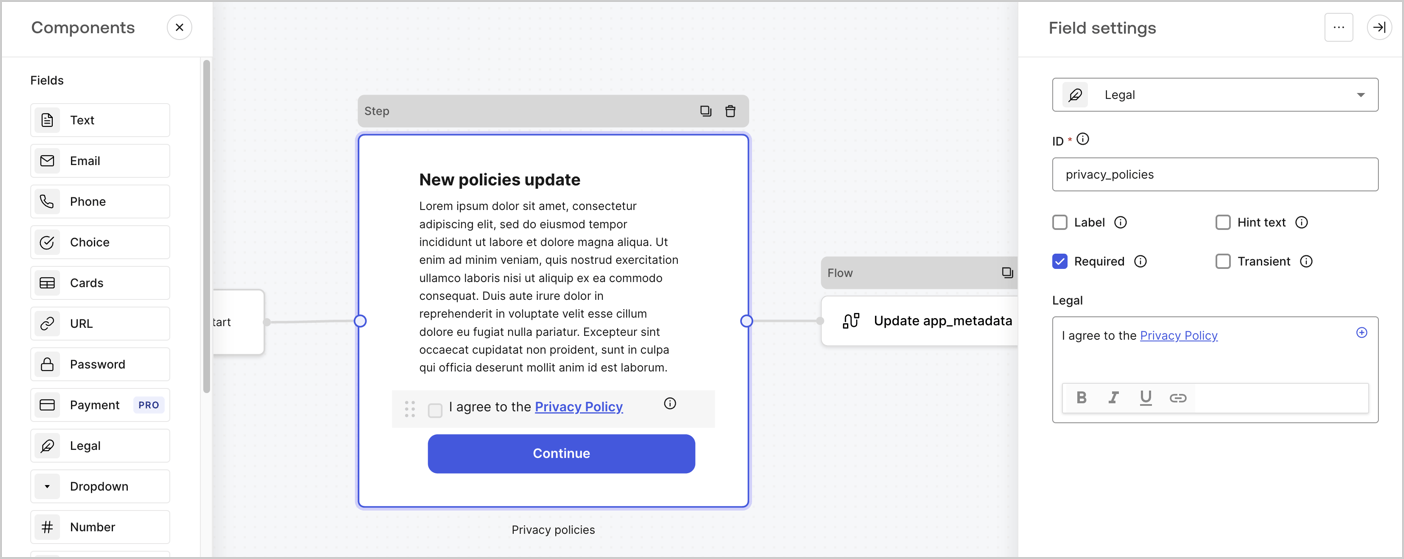
The Step node is the graphical interface visible to users. Add [Fields](/docs/customize/forms/nodes-and-components) to the Step node to collect the new agreement acceptance value by following these steps:

1. Drag a **Rich text** field from the **Components menu** into the **Step** node.

   * **Rich text**: Enter a description of your privacy policies updates.
   * Select **Save**.
2. Drag a **Legal** field into the **Step** node.

   * **ID**: Enter `privacy_policies`.
   * **Required**: Enable the checkbox.
   * **Legal**: Enter `I agree to the Privacy Policy`.
   * Select **Save**.
3. Select **Publish** to save.
<Frame>
  <img src="https://mintcdn.com/docs-staging-actions-modules-ga/XUY0i-O8y4wYuXzV/docs/images/cdy7uua7fh8z/59zFFjQjAnjogkc2QGIqqJ/0ad66b1b636544122aa4e65968b76c2c/privacy-policy-step-node.png?fit=max&auto=format&n=XUY0i-O8y4wYuXzV&q=85&s=9089919636a96270f3b60a0868d02259" alt="Dashboard > Actions > Forms > Use case privacy policy step node" data-og-width="1404" width="1404" data-og-height="559" height="559" data-path="docs/images/cdy7uua7fh8z/59zFFjQjAnjogkc2QGIqqJ/0ad66b1b636544122aa4e65968b76c2c/privacy-policy-step-node.png" data-optimize="true" data-opv="3" srcset="https://mintcdn.com/docs-staging-actions-modules-ga/XUY0i-O8y4wYuXzV/docs/images/cdy7uua7fh8z/59zFFjQjAnjogkc2QGIqqJ/0ad66b1b636544122aa4e65968b76c2c/privacy-policy-step-node.png?w=280&fit=max&auto=format&n=XUY0i-O8y4wYuXzV&q=85&s=7d1a8d9549daa317e4a704449a68c2d8 280w, https://mintcdn.com/docs-staging-actions-modules-ga/XUY0i-O8y4wYuXzV/docs/images/cdy7uua7fh8z/59zFFjQjAnjogkc2QGIqqJ/0ad66b1b636544122aa4e65968b76c2c/privacy-policy-step-node.png?w=560&fit=max&auto=format&n=XUY0i-O8y4wYuXzV&q=85&s=9c4c0d54d24842c43cdcd20a5c1c5b20 560w, https://mintcdn.com/docs-staging-actions-modules-ga/XUY0i-O8y4wYuXzV/docs/images/cdy7uua7fh8z/59zFFjQjAnjogkc2QGIqqJ/0ad66b1b636544122aa4e65968b76c2c/privacy-policy-step-node.png?w=840&fit=max&auto=format&n=XUY0i-O8y4wYuXzV&q=85&s=34965056b4b51e3eddfdf83b28562b57 840w, https://mintcdn.com/docs-staging-actions-modules-ga/XUY0i-O8y4wYuXzV/docs/images/cdy7uua7fh8z/59zFFjQjAnjogkc2QGIqqJ/0ad66b1b636544122aa4e65968b76c2c/privacy-policy-step-node.png?w=1100&fit=max&auto=format&n=XUY0i-O8y4wYuXzV&q=85&s=40e1d173a411f9caae2d1a5bf9e6d7a5 1100w, https://mintcdn.com/docs-staging-actions-modules-ga/XUY0i-O8y4wYuXzV/docs/images/cdy7uua7fh8z/59zFFjQjAnjogkc2QGIqqJ/0ad66b1b636544122aa4e65968b76c2c/privacy-policy-step-node.png?w=1650&fit=max&auto=format&n=XUY0i-O8y4wYuXzV&q=85&s=ddfe1b3b4195bdfdfefb7ac2a89b204c 1650w, https://mintcdn.com/docs-staging-actions-modules-ga/XUY0i-O8y4wYuXzV/docs/images/cdy7uua7fh8z/59zFFjQjAnjogkc2QGIqqJ/0ad66b1b636544122aa4e65968b76c2c/privacy-policy-step-node.png?w=2500&fit=max&auto=format&n=XUY0i-O8y4wYuXzV&q=85&s=2f187c7cb40fa3300fb8383265503224 2500w" />
</Frame>

### Configure the Flow node

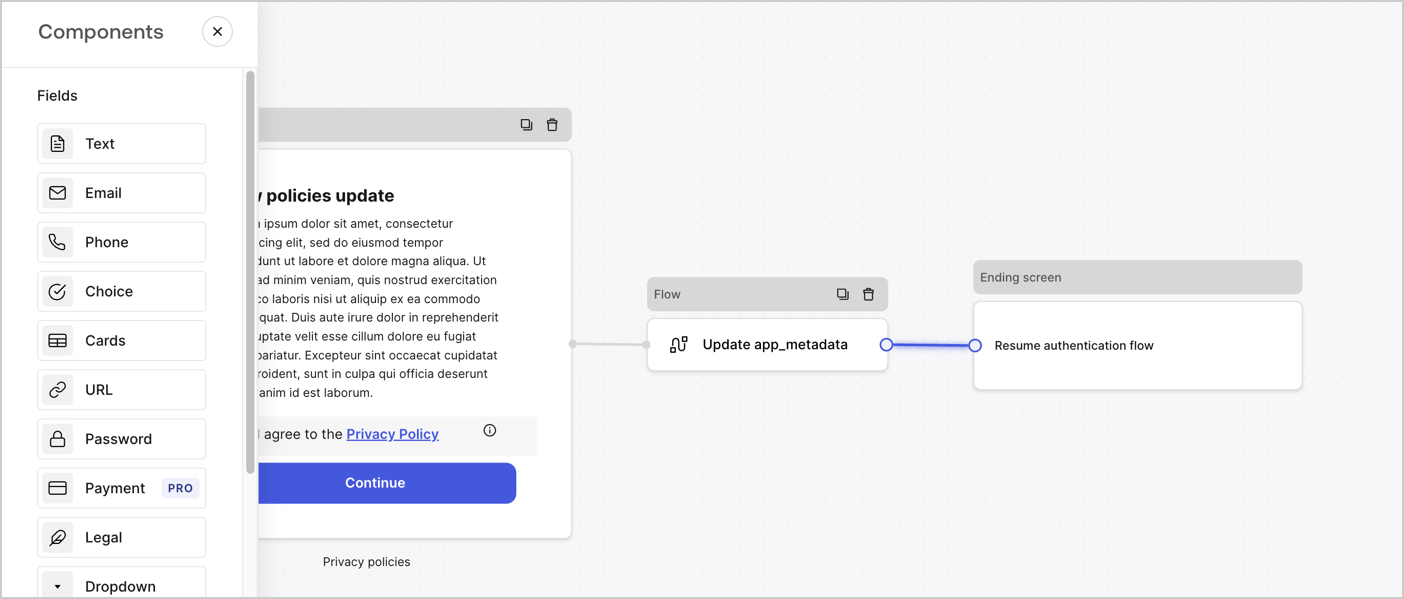
Add a **Flow** node after the **Step** node to update the `app_metadata` and resume the authentication flow by following these steps:

1. Select **Flow** from the bottom of the Form editor.
2. Remove the existing link between the **Step** and **Ending Screen** nodes.
3. Select the new **Flow** > **Click to add a flow** > **Create a new flow.**

   * Enter `Update app_metadata` in the **Name** field.
   * Select **Create**.
   * Select **Save**.
4. Link the **Flow** node to the **Step** and **Ending Screen** nodes as pictured below.
5. Select **Publish** to save.
<Frame>
  <img src="https://mintcdn.com/docs-staging-actions-modules-ga/HUG1HenOThCKU6DB/docs/images/cdy7uua7fh8z/6YIkzm7SrpM9LW76AXuRzh/353c518fe82bbaa440836da1d83596d6/link-policies.png?fit=max&auto=format&n=HUG1HenOThCKU6DB&q=85&s=141e5e0efb8a61d73b61f7ac5d66bfbd" alt="Dashboard > Actions > Forms > Form" data-og-width="1404" width="1404" data-og-height="599" height="599" data-path="docs/images/cdy7uua7fh8z/6YIkzm7SrpM9LW76AXuRzh/353c518fe82bbaa440836da1d83596d6/link-policies.png" data-optimize="true" data-opv="3" srcset="https://mintcdn.com/docs-staging-actions-modules-ga/HUG1HenOThCKU6DB/docs/images/cdy7uua7fh8z/6YIkzm7SrpM9LW76AXuRzh/353c518fe82bbaa440836da1d83596d6/link-policies.png?w=280&fit=max&auto=format&n=HUG1HenOThCKU6DB&q=85&s=891ab3bf7dd15ed166e710934cd2cbf8 280w, https://mintcdn.com/docs-staging-actions-modules-ga/HUG1HenOThCKU6DB/docs/images/cdy7uua7fh8z/6YIkzm7SrpM9LW76AXuRzh/353c518fe82bbaa440836da1d83596d6/link-policies.png?w=560&fit=max&auto=format&n=HUG1HenOThCKU6DB&q=85&s=71148bbcecd80f91824388059c487976 560w, https://mintcdn.com/docs-staging-actions-modules-ga/HUG1HenOThCKU6DB/docs/images/cdy7uua7fh8z/6YIkzm7SrpM9LW76AXuRzh/353c518fe82bbaa440836da1d83596d6/link-policies.png?w=840&fit=max&auto=format&n=HUG1HenOThCKU6DB&q=85&s=9150881f0b7d8472066f315b71958314 840w, https://mintcdn.com/docs-staging-actions-modules-ga/HUG1HenOThCKU6DB/docs/images/cdy7uua7fh8z/6YIkzm7SrpM9LW76AXuRzh/353c518fe82bbaa440836da1d83596d6/link-policies.png?w=1100&fit=max&auto=format&n=HUG1HenOThCKU6DB&q=85&s=ea96c35ab457c8b43926f7a844be5ed7 1100w, https://mintcdn.com/docs-staging-actions-modules-ga/HUG1HenOThCKU6DB/docs/images/cdy7uua7fh8z/6YIkzm7SrpM9LW76AXuRzh/353c518fe82bbaa440836da1d83596d6/link-policies.png?w=1650&fit=max&auto=format&n=HUG1HenOThCKU6DB&q=85&s=ca7a14a693222e967c57dd31c7ad0904 1650w, https://mintcdn.com/docs-staging-actions-modules-ga/HUG1HenOThCKU6DB/docs/images/cdy7uua7fh8z/6YIkzm7SrpM9LW76AXuRzh/353c518fe82bbaa440836da1d83596d6/link-policies.png?w=2500&fit=max&auto=format&n=HUG1HenOThCKU6DB&q=85&s=f71dc9603ee98e7db820707f7bd4e8b1 2500w" />
</Frame>

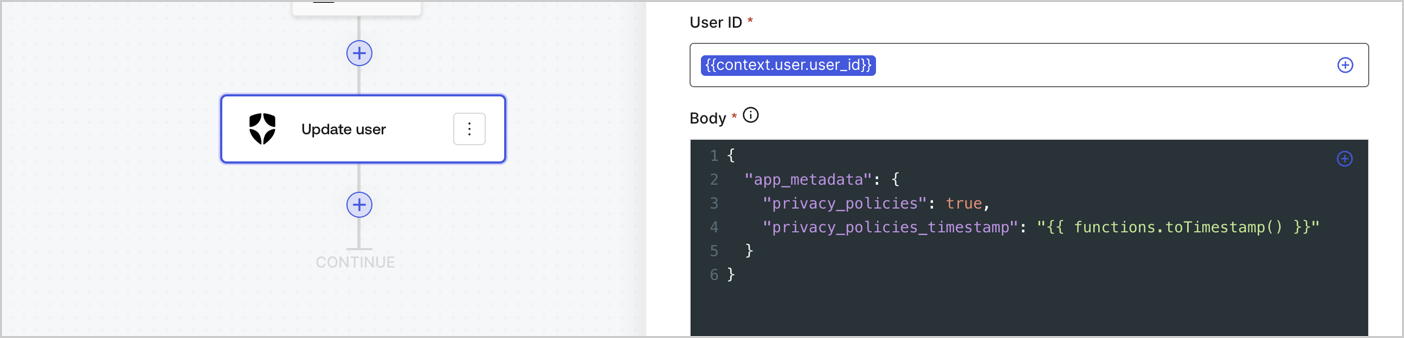
Add an Auth0 Update user action to the flow by following these steps:

1. Select the **Flow** **Update app\_metadata** > **Edit flow** to open the Flow editor in a new tab.
2. Below the StartAction, select the **+** icon to add an **Update user** action. Complete the fields below, then select **Save** to continue.

   * **Connection**: Select from the dropdown the Vault connection to your M2M application.

   * **User ID**: Enter `{{context.user.user_id}}`.

   * **Body**: Copy and paste the following code to update the app\_metadata with the privacy\_policies and privacy\_policies\_timestamp properties.

     ```text lines theme={null}
     {
       "app_metadata": {
         "privacy_policies": true,
         "privacy_policies_timestamp": "{{ functions.toTimestamp() }}"
       }
     }
     ```

   * Select **Save**.
3. Select **Publish** to save.
<Frame>
  <img src="https://mintcdn.com/docs-staging-actions-modules-ga/PFGXbDbxlrQUNaew/docs/images/cdy7uua7fh8z/CvMNIwWrOUwaFW4X3G28p/1fb70ae57a20749d9ffaaba8dc0b7e26/update-user-privacy.png?fit=max&auto=format&n=PFGXbDbxlrQUNaew&q=85&s=a79096b00b42527541b0861b7d18c05d" alt="Dashboard > Actions > Forms > User case privacy policy code" data-og-width="1404" width="1404" data-og-height="338" height="338" data-path="docs/images/cdy7uua7fh8z/CvMNIwWrOUwaFW4X3G28p/1fb70ae57a20749d9ffaaba8dc0b7e26/update-user-privacy.png" data-optimize="true" data-opv="3" srcset="https://mintcdn.com/docs-staging-actions-modules-ga/PFGXbDbxlrQUNaew/docs/images/cdy7uua7fh8z/CvMNIwWrOUwaFW4X3G28p/1fb70ae57a20749d9ffaaba8dc0b7e26/update-user-privacy.png?w=280&fit=max&auto=format&n=PFGXbDbxlrQUNaew&q=85&s=8ed4012d9fe552f8171fa3b65285cfae 280w, https://mintcdn.com/docs-staging-actions-modules-ga/PFGXbDbxlrQUNaew/docs/images/cdy7uua7fh8z/CvMNIwWrOUwaFW4X3G28p/1fb70ae57a20749d9ffaaba8dc0b7e26/update-user-privacy.png?w=560&fit=max&auto=format&n=PFGXbDbxlrQUNaew&q=85&s=4a9093ecfeb7c5b1a46436ab9e1bebee 560w, https://mintcdn.com/docs-staging-actions-modules-ga/PFGXbDbxlrQUNaew/docs/images/cdy7uua7fh8z/CvMNIwWrOUwaFW4X3G28p/1fb70ae57a20749d9ffaaba8dc0b7e26/update-user-privacy.png?w=840&fit=max&auto=format&n=PFGXbDbxlrQUNaew&q=85&s=97cc40489d08d72a675d112ab0a5d9e6 840w, https://mintcdn.com/docs-staging-actions-modules-ga/PFGXbDbxlrQUNaew/docs/images/cdy7uua7fh8z/CvMNIwWrOUwaFW4X3G28p/1fb70ae57a20749d9ffaaba8dc0b7e26/update-user-privacy.png?w=1100&fit=max&auto=format&n=PFGXbDbxlrQUNaew&q=85&s=c0d115465ff029cdb28709dfd450f50f 1100w, https://mintcdn.com/docs-staging-actions-modules-ga/PFGXbDbxlrQUNaew/docs/images/cdy7uua7fh8z/CvMNIwWrOUwaFW4X3G28p/1fb70ae57a20749d9ffaaba8dc0b7e26/update-user-privacy.png?w=1650&fit=max&auto=format&n=PFGXbDbxlrQUNaew&q=85&s=2996336f5a40d1f29485cf80173e7e17 1650w, https://mintcdn.com/docs-staging-actions-modules-ga/PFGXbDbxlrQUNaew/docs/images/cdy7uua7fh8z/CvMNIwWrOUwaFW4X3G28p/1fb70ae57a20749d9ffaaba8dc0b7e26/update-user-privacy.png?w=2500&fit=max&auto=format&n=PFGXbDbxlrQUNaew&q=85&s=bac8a7c5d76ccf9787b9797eab799c2b 2500w" />
</Frame>

<Callout icon="file-lines" color="#0EA5E9" iconType="regular">
  The flow **Update app\_metadata** adds a `privacy_policies true` value to the app`_metadata` object and also generates a timestamp with a [helper function.](/docs/customize/forms/variables)
</Callout>

## Retrieve the form render code

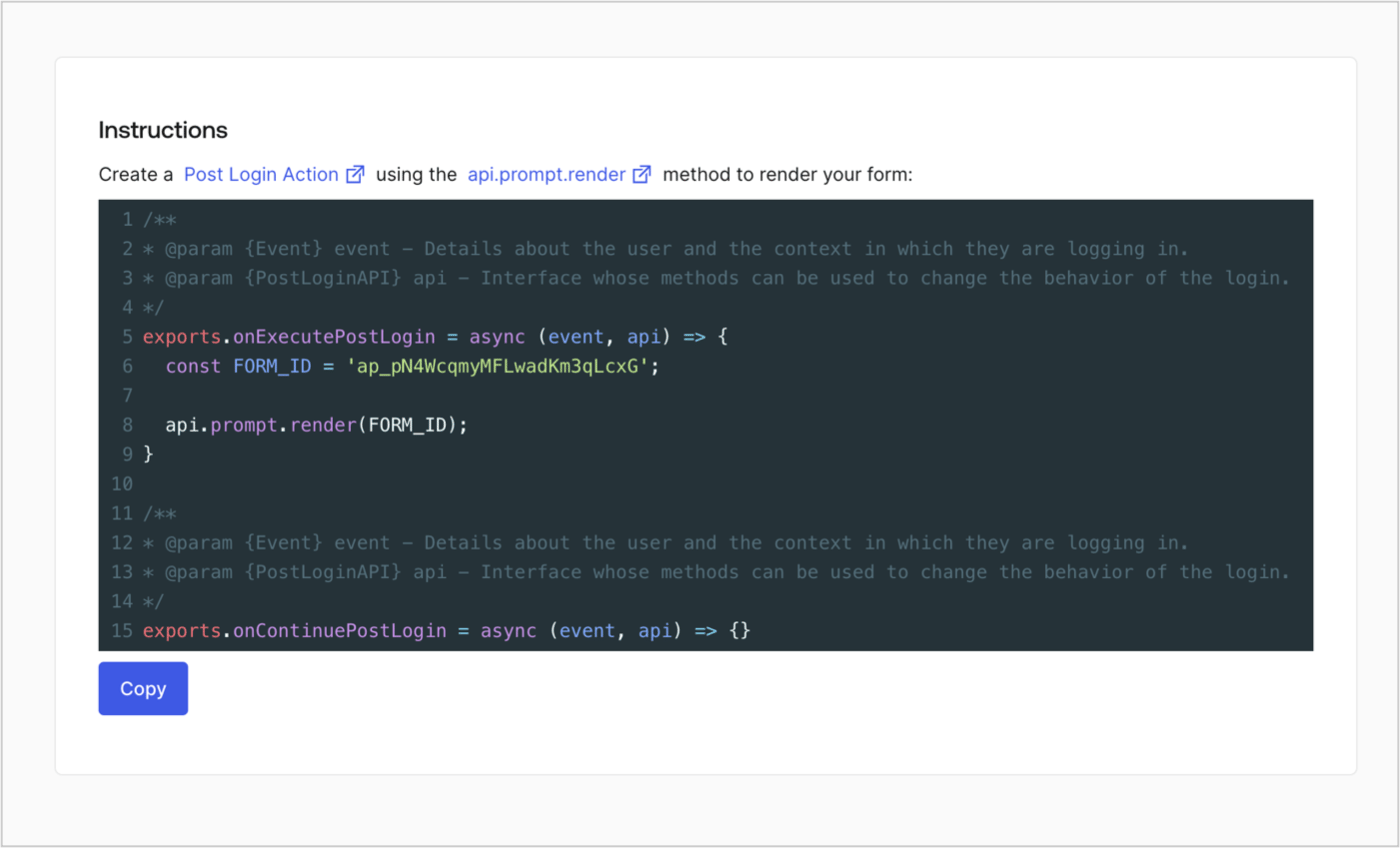
Retrieve your form render code to visually render the form with a custom Post Login Action by following these steps:

* From the Form editor, select **`<> Render`**.
* Select **Copy**.
<Frame>
  <img src="https://mintcdn.com/docs-staging-actions-modules-ga/qWajBONU0MXmeLMm/docs/images/cdy7uua7fh8z/2EIUzc539sq9lwoTKbjoJv/496a864c0fc44a782c9cadca119dbfb0/embed.png?fit=max&auto=format&n=qWajBONU0MXmeLMm&q=85&s=74a593988d553a8b509da43b264ccb3f" alt="Dashboard > Actions > Forms > Form > Embed" data-og-width="1400" width="1400" data-og-height="848" height="848" data-path="docs/images/cdy7uua7fh8z/2EIUzc539sq9lwoTKbjoJv/496a864c0fc44a782c9cadca119dbfb0/embed.png" data-optimize="true" data-opv="3" srcset="https://mintcdn.com/docs-staging-actions-modules-ga/qWajBONU0MXmeLMm/docs/images/cdy7uua7fh8z/2EIUzc539sq9lwoTKbjoJv/496a864c0fc44a782c9cadca119dbfb0/embed.png?w=280&fit=max&auto=format&n=qWajBONU0MXmeLMm&q=85&s=bbce5850b638112c5f0f21d565dda750 280w, https://mintcdn.com/docs-staging-actions-modules-ga/qWajBONU0MXmeLMm/docs/images/cdy7uua7fh8z/2EIUzc539sq9lwoTKbjoJv/496a864c0fc44a782c9cadca119dbfb0/embed.png?w=560&fit=max&auto=format&n=qWajBONU0MXmeLMm&q=85&s=f86a66a6e0235336271ab6f84a330e10 560w, https://mintcdn.com/docs-staging-actions-modules-ga/qWajBONU0MXmeLMm/docs/images/cdy7uua7fh8z/2EIUzc539sq9lwoTKbjoJv/496a864c0fc44a782c9cadca119dbfb0/embed.png?w=840&fit=max&auto=format&n=qWajBONU0MXmeLMm&q=85&s=e302136351206f5f9d770a2250ad1554 840w, https://mintcdn.com/docs-staging-actions-modules-ga/qWajBONU0MXmeLMm/docs/images/cdy7uua7fh8z/2EIUzc539sq9lwoTKbjoJv/496a864c0fc44a782c9cadca119dbfb0/embed.png?w=1100&fit=max&auto=format&n=qWajBONU0MXmeLMm&q=85&s=681fea1b1872b6b724e4f4156ccdd39c 1100w, https://mintcdn.com/docs-staging-actions-modules-ga/qWajBONU0MXmeLMm/docs/images/cdy7uua7fh8z/2EIUzc539sq9lwoTKbjoJv/496a864c0fc44a782c9cadca119dbfb0/embed.png?w=1650&fit=max&auto=format&n=qWajBONU0MXmeLMm&q=85&s=a6b80af0fb74edefc0c449ee195cdf66 1650w, https://mintcdn.com/docs-staging-actions-modules-ga/qWajBONU0MXmeLMm/docs/images/cdy7uua7fh8z/2EIUzc539sq9lwoTKbjoJv/496a864c0fc44a782c9cadca119dbfb0/embed.png?w=2500&fit=max&auto=format&n=qWajBONU0MXmeLMm&q=85&s=dccf33099e714f13e9db3fb9b2a4c30e 2500w" />
</Frame>

## Create a Post Login Action

Create a post-login Action to render your form by following these steps:

1. Navigate to **Auth0 Dashboard > Actions > Flows > Login.**
2. Select the **+** icon and Select **Build from scratch**:

   * **Name**: Enter `Render Update Policy Form`.
   * **Trigger**: Select `Login / Post Login`.
   * **Runtime**: Select the recommended version.
3. Select **Create**.

To configure the post-login Action:

1. Delete the existing code from the Code editor.
2. Paste the form render code into the Code editor.
3. Edit the code to define the conditional logic that will render the form.

   ```javascript lines theme={null}
   /**
   * @param {Event} event - Details about the user and the context in which they are logging in.
   * @param {PostLoginAPI} api - Interface whose methods can be used to change the behavior of the login.
   */
   exports.onExecutePostLogin = async (event, api) => {
     const FORM_ID = 'REPLACE_WITH_YOUR_FORM_ID';

     if (event.user.app_metadata.privacy_policies !== true) {
       api.prompt.render(FORM_ID);
     }
   }

   exports.onContinuePostLogin = async (event, api) => { }
   ```

   <Callout icon="file-lines" color="#0EA5E9" iconType="regular">
     The example code above will render the form when a user is missing the app metadata `privacy_policies` property.
   </Callout>
4. Select **Deploy.**
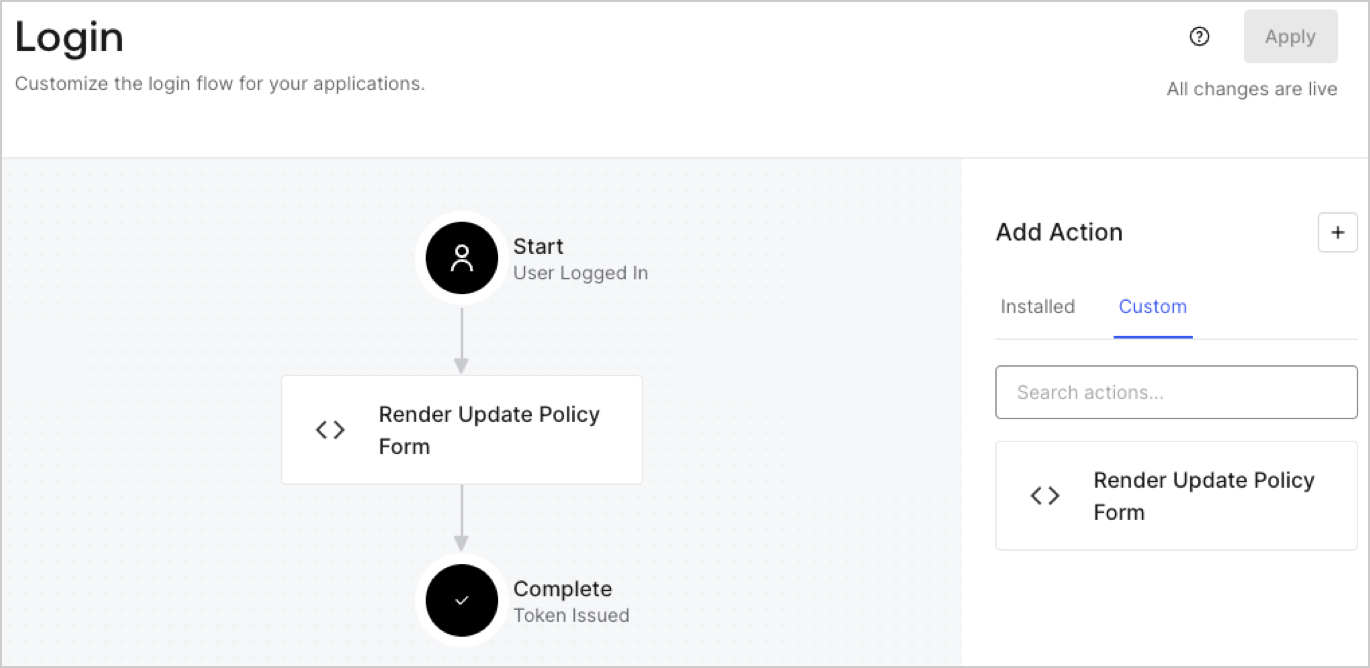
5. Drag and Drop the **Render Update Policy Form** Action to the **Login** flow.
   <Frame>
     <img src="https://mintcdn.com/docs-staging-actions-modules-ga/_vHZo--51Aha0KWo/docs/images/cdy7uua7fh8z/5TOwDgevZsBqd7yZynUYWU/41ca909dc3007aed4f40ff794a05efa5/postlogin.png?fit=max&auto=format&n=_vHZo--51Aha0KWo&q=85&s=0073700e7645d03e6a9fbb98799fcc3d" alt="Dashboard > Forms > Use Case > Render update policy form login action" data-og-width="1370" width="1370" data-og-height="668" height="668" data-path="docs/images/cdy7uua7fh8z/5TOwDgevZsBqd7yZynUYWU/41ca909dc3007aed4f40ff794a05efa5/postlogin.png" data-optimize="true" data-opv="3" srcset="https://mintcdn.com/docs-staging-actions-modules-ga/_vHZo--51Aha0KWo/docs/images/cdy7uua7fh8z/5TOwDgevZsBqd7yZynUYWU/41ca909dc3007aed4f40ff794a05efa5/postlogin.png?w=280&fit=max&auto=format&n=_vHZo--51Aha0KWo&q=85&s=406f7f29592d994f5ece6fdb07d80830 280w, https://mintcdn.com/docs-staging-actions-modules-ga/_vHZo--51Aha0KWo/docs/images/cdy7uua7fh8z/5TOwDgevZsBqd7yZynUYWU/41ca909dc3007aed4f40ff794a05efa5/postlogin.png?w=560&fit=max&auto=format&n=_vHZo--51Aha0KWo&q=85&s=c8b04a71c759b360331d3d7cb59ac84d 560w, https://mintcdn.com/docs-staging-actions-modules-ga/_vHZo--51Aha0KWo/docs/images/cdy7uua7fh8z/5TOwDgevZsBqd7yZynUYWU/41ca909dc3007aed4f40ff794a05efa5/postlogin.png?w=840&fit=max&auto=format&n=_vHZo--51Aha0KWo&q=85&s=d005ae272516e71c636cdfaa9e55c51e 840w, https://mintcdn.com/docs-staging-actions-modules-ga/_vHZo--51Aha0KWo/docs/images/cdy7uua7fh8z/5TOwDgevZsBqd7yZynUYWU/41ca909dc3007aed4f40ff794a05efa5/postlogin.png?w=1100&fit=max&auto=format&n=_vHZo--51Aha0KWo&q=85&s=20fa458c60c82e19f1b818814e48124f 1100w, https://mintcdn.com/docs-staging-actions-modules-ga/_vHZo--51Aha0KWo/docs/images/cdy7uua7fh8z/5TOwDgevZsBqd7yZynUYWU/41ca909dc3007aed4f40ff794a05efa5/postlogin.png?w=1650&fit=max&auto=format&n=_vHZo--51Aha0KWo&q=85&s=43aeb8c98ff41c5bbacdaf2b4cf67df4 1650w, https://mintcdn.com/docs-staging-actions-modules-ga/_vHZo--51Aha0KWo/docs/images/cdy7uua7fh8z/5TOwDgevZsBqd7yZynUYWU/41ca909dc3007aed4f40ff794a05efa5/postlogin.png?w=2500&fit=max&auto=format&n=_vHZo--51Aha0KWo&q=85&s=2aa31792c9f56124abd60066dccae54b 2500w" />
   </Frame>
6. Select **Apply.**

### Test implementation

Test the implementation by following these steps:

1. Log in with an existing user whose app`_metadata` attribute `privacy_policies` does not have a value.
2. The post-login Action in the Login flow will render the form and prompt for acceptance.
3. Select **Auth0 Dashboard > User Management > Users,** locate the user and verify that the `app_metadata` attribute `privacy_policies` contains a `true` value and a timestamp.
